Building your first Framer site

Franerd
Design studio
12 min article
If you’ve ever felt limited by static design tools or overwhelmed by complex coding environments, Framer is your middle ground. It’s the only tool that feels like Figma but performs like a high-end web engine. Let’s break down how to move from a blank screen to a published site.
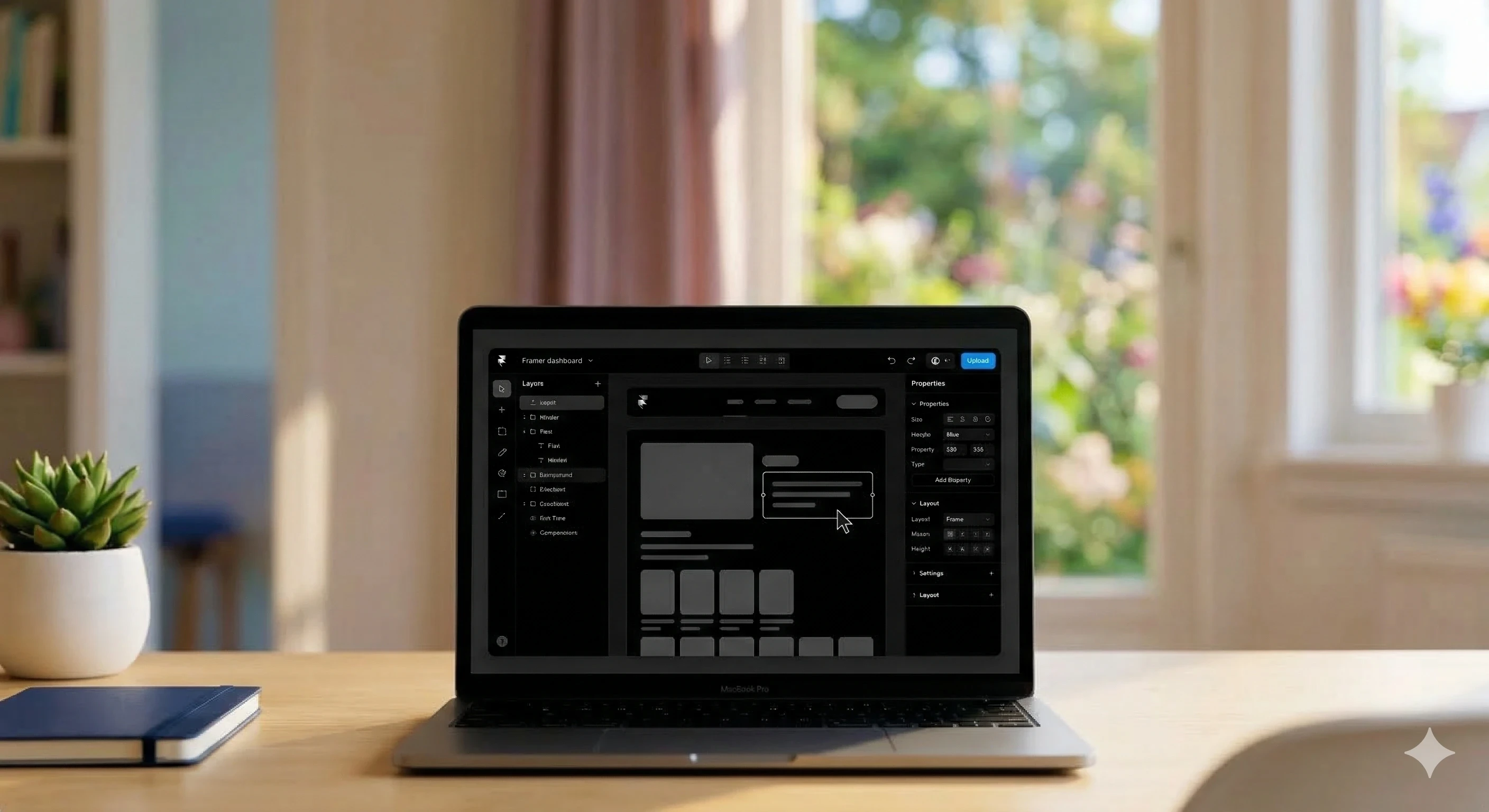
Starting Strong: The Workspace
Framer makes it easy to build professional websites without a single line of code. When you hit "New Project," skip the templates for a moment and choose a Blank Canvas. This gives you full control over the site's DNA from the jump.
The Figma-to-Framer Bridge: If you already have designs in Figma, don't start from scratch. Use the "Figma to Framer" plugin to copy your layers directly into the canvas. It’ll save you hours of rebuilding basic shapes and text styles, but remember: once pasted, you’ll need to convert those static groups into Stacks to make them responsive.
Defining Your Global Styles: Before dropping a single image, set up your Assets panel. Define your primary headings ($H1$, $H2$, etc.) and brand colors. In Framer, changing a "Link" color in your Styles will instantly update every button on your site—saving you from the tedious "click-and-change" loop.
The Desktop-First Hierarchy: By default, Framer uses your Desktop frame as the "Primary" breakpoint. Think of this as the source of truth. Any style or layout change made here automatically flows down to Tablet and Mobile, keeping your design consistent without triple the work.
Setting the Page Background: Unlike Figma, where a frame is just a box, a Framer Page represents a real URL. Set your page background color and "Min-height" to 100vh (Viewport Height) immediately. This ensures that even on huge monitors, your footer doesn't "float" in the middle of the screen if your content is short.
Organizing the Layers Panel: Web projects get messy fast. Get into the habit of naming your frames (e.g.,
Hero_Section,Features_Grid). This isn't just for cleanliness; when you eventually hand this site off to a client or look at the SEO settings, clear naming makes navigation a breeze.
The Logic: Stacks vs. Frames
In Figma, you move layers wherever you want. In Framer, you build with a "web-first" mindset. Understanding this distinction is the "Aha!" moment for every new user.
Stacks (Flexbox Power): Think of Stacks as "Auto Layout" on steroids. Use these for anything that needs to flow—like navbars, lists, or entire sections. They automatically handle the spacing between elements so you never have to nudge layers by hand.
Frames as Containers: While Stacks handle the flow, Frames act as the rigid containers. Use a Frame when you need a fixed-size box or a specific background treatment (like a gradient or an image) to hold your Stacks.
The "Fill" vs. "Fit" Secret: This is the key to responsiveness. Set a Stack to Fill if you want it to stretch to the edges of the screen, or Fit if you want it to shrink-wrap around its content (perfect for buttons!).
Directional Flow: With one click, you can flip a Desktop "Horizontal" Stack (side-by-side items) into a Mobile "Vertical" Stack (stacked items). This is the fastest way to make a layout mobile-ready.
Adding and Refining Content
Now, it’s time to breathe life into the site. This stage is about moving from a "design" to a functional "interface."
Smart Media Handling: When dropping in images, Framer automatically optimizes them for the web. However, for the best performance, use WebP or SVG formats where possible to keep your site loading at lightning speeds.
The Power of Components: If you find yourself building the same button or card three times, stop! Right-click and Create Component. Now, you can update the "Master" and every instance across your site will follow suit.
Consistent Spacing (Gaps): Don’t use empty "spacer" boxes. Use the Gap property in your Stacks. This ensures your margins are mathematically perfect and can be adjusted globally for mobile screens with a single slider.
Interactive Overlays: Framer makes "Popups" and "Modals" incredibly easy. You can add an Overlay to any element to create a sophisticated menu or a "Contact Us" prompt without leaving the main canvas.
Breakpoints: Designing for Every Screen
Framer’s approach to responsiveness is "Top-Down," meaning your Desktop design is the "Parent" and other screens are the "Children."
The Desktop-First Rule: Always finish 90% of your Desktop design before touching the Tablet or Phone icons. Since styles "inherit" downwards, your mobile site will practically build itself as you go.
Breaking the Inheritance: If you need a specific font size or layout only for Mobile, you can override it on the Phone breakpoint. The Desktop version will remain untouched, but the "link" stays active for everything else.
Using 100% Width: For mobile, get into the habit of setting your main Stacks to 100% Width instead of fixed pixels. This ensures your site looks great on everything from a tiny iPhone SE to a massive Pro Max.
The "Hidden" Feature: Sometimes a complex Desktop graphic just doesn't work on a phone. You can "Hide" any layer on a specific breakpoint with a single toggle in the right-hand panel, allowing you to swap it for a mobile-friendly version.
Launch Day: Publishing Your Site
The finish line is in sight! But before you share your URL with the world, there are a few "quality control" steps to take.
The Preview Stress Test: Hit the Play icon and manually resize your browser window. Watch how your Stacks respond. If something looks "squished," that’s your cue to adjust your "Fill/Fit" settings.
SEO & Metadata: Don't just publish! Go to the Page Settings and fill out your Title and Description. This is what shows up on Google and when you text the link to a friend. Add a "Social Image" so your site looks professional when shared on LinkedIn or X (Twitter).
Custom Domains: Framer gives you a free
yoursite.framer.appURL, but for a professional look, you can connect a custom domain (likeyourname.com) in seconds. Framer handles the SSL (the little green padlock) automatically.Staging vs. Production: One of the best parts of Framer? You can make edits to your canvas without them going live immediately. Your changes only hit the web when you press Update, giving you a safe "playground" to test new ideas.
Wrapping Up: Your Journey from Designer to Site Builder
Building your first Framer site is more than just a project; it’s a shift in how you think about the web. By moving away from static pixels and embracing the logic of Stacks, Breakpoints, and Live Components, you’re no longer just designing a "picture" of a website—you’re engineering the real thing.
The beauty of Framer lies in its fluidity. Don't worry about making everything pixel-perfect on day one. Start with a simple landing page, experiment with a few hover effects, and get comfortable with how content flows across different screen sizes. Before you know it, the boundary between "designing" and "developing" will disappear entirely.
What’s Next?
Now that you’ve mastered the basics of project setup and layout, you’re ready to dive deeper. Here are a few features to explore as you grow:
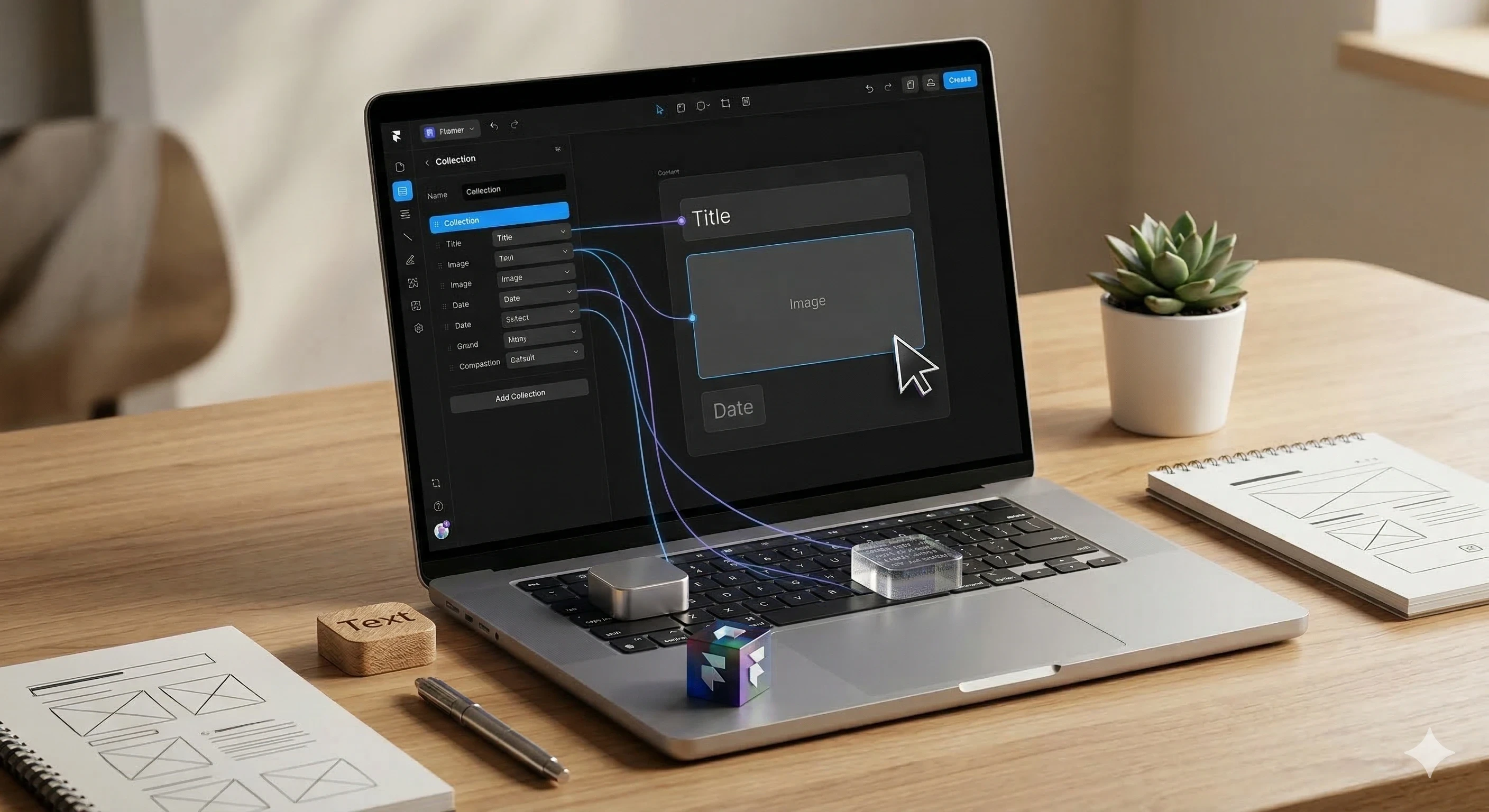
CMS (Content Management System): Perfect for starting a blog or a portfolio without manual page updates.
Scroll Transforms: Add that high-end feel with elements that move, fade, or scale as the user scrolls.
Form Integration: Connect your site to Mailchimp or Typeform to start capturing leads.
Your first site is just the beginning. Hit that publish button, share your URL with the world, and keep building!