Setting Up Framer CMS

Franerd
Design studio
8 min article
If you’re manually duplicating pages every time you want to add a new blog post or portfolio item, stop! The Framer CMS is your engine for growth. It allows you to separate your content from your design, so you can update your site without ever touching the canvas.
Creating Collections: The Blueprint of Your Data
Framer CMS lets you manage dynamic content like blog posts, case studies, and team members. Think of a Collection as a database or a structured spreadsheet that lives inside your project.
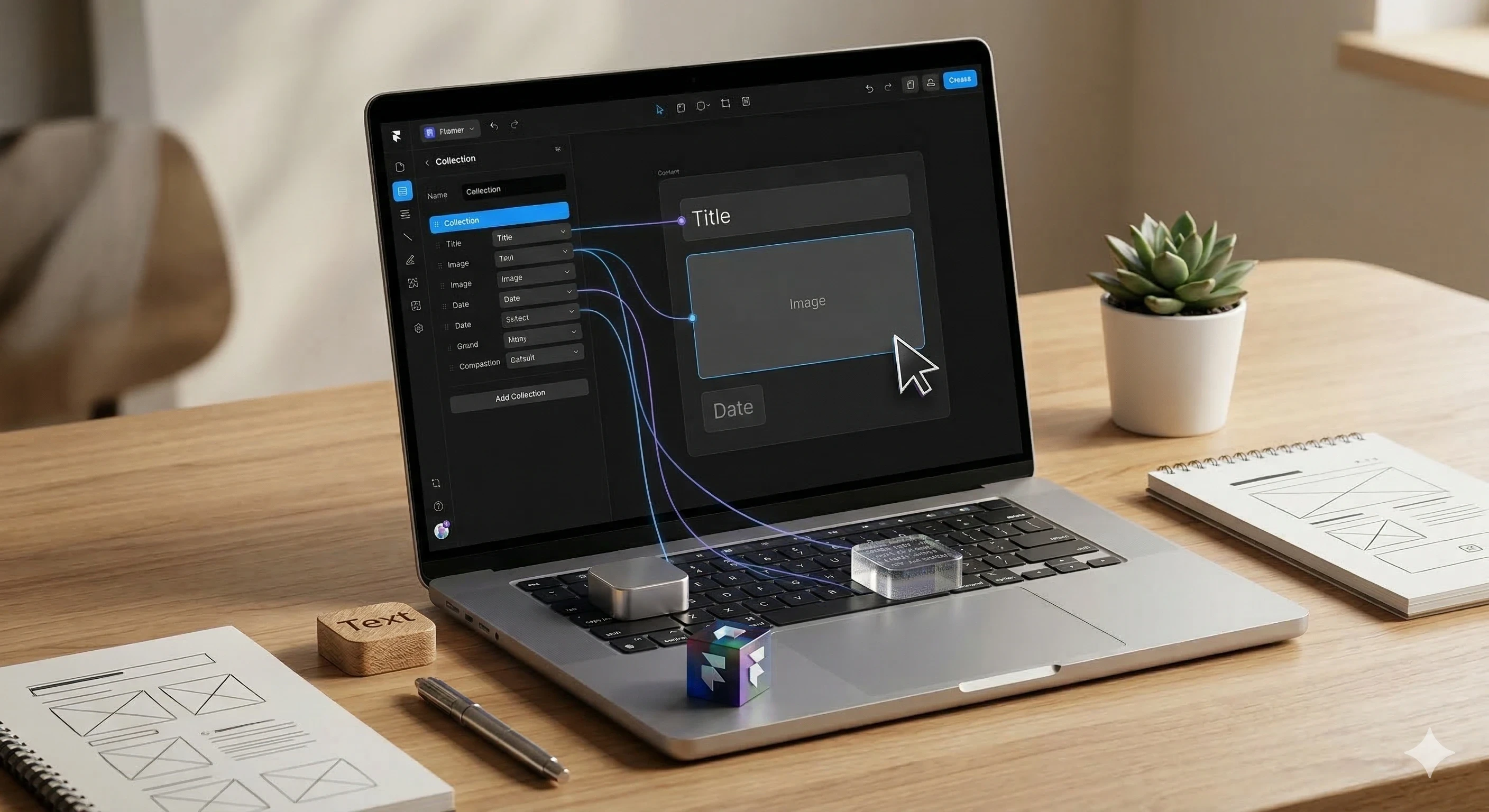
Choosing Your Fields: When you create a collection (e.g., "Blog"), you define the "Fields." Common fields include Plain Text for titles, Formatted Text for the body, Images for thumbnails, and Dates for publishing.
The Power of "Slug": Framer automatically generates a "Slug" (the URL path, like
/blog/my-first-post) for every item. You can customize these to keep your URLs clean and SEO-friendly.Importing Data: If you’re migrating from WordPress or Webflow, you don't have to copy-paste. You can import a CSV file directly into your collection to populate dozens of items in seconds.
Pro Tip: Use the Toggle field for "Featured" items. This allows you to easily flag specific posts to show up at the top of your homepage later.
Designing CMS Pages: Design Once, Populate Everywhere
This is the "magic" phase. Instead of designing 50 separate blog pages, you design one "CMS Page" (indicated by a purple icon in your layers) that acts as a universal template.
Connecting Variables: Once your layout is ready, you "link" your design elements to your CMS fields. Click the + next to a text layer's content and select "Title" from your collection. Suddenly, your static text becomes dynamic.
Content-Driven Layouts: Use Stacks for your CMS pages. Since one blog post might have 500 words and another 2,000, a Stack will ensure the page expands vertically to fit the content perfectly without breaking the footer.
Adaptive Styling: You can even link Colors or Visibility to CMS fields. For example, if a "Case Study" has a "Brand Color" field, you can make the page header automatically change color to match the client’s branding.
The "Canvas View": While designing, you can cycle through different CMS items in the top toolbar to see how your design looks with short titles versus long titles.
Filtering and Sorting: Building Intuitive Navigation
Once your data is in, you need to show it to your users. You do this using Collection Lists on your main pages.
Dynamic Filtering: You can set rules so a specific list only shows "Design" articles or "Completed" projects. This is essential for building category-specific pages.
Smart Sorting: Build intuitive navigation by sorting by Date (newest first), Alphabetical, or even a custom "Sort Order" number you define in the CMS.
Limit Items: On your homepage, you might only want to show the "Top 3" latest posts. Use the Limit property to keep your landing page snappy and focused.
The "Empty State": Framer allows you to design what users see if a collection is empty (e.g., "No posts found!"), ensuring your UI never looks broken or abandoned.
Going Live: Connect, Validate, and Launch
Before you push your content to the world, you need to ensure the data is "clean" and the connections are solid.
Validating Entries: Check for "Missing Fields." If you connected an image layer to a CMS field but forgot to upload an image for one post, Framer will show you where the gaps are so you can fix them before publishing.
Draft vs. Published: You can set individual CMS items to "Draft" mode. This allows you to write and save content inside Framer without it appearing on your live site until you’re ready to hit "Publish."
Real-Time Updates: The best part? Once your site is live, adding a new blog post doesn't require a full site redesign. Just add the item to the CMS, hit Update, and the new page is live instantly.
SEO Automation: In your CMS Page settings, you can map your "SEO Title" and "SEO Description" directly to your CMS fields. This means every new post you write is automatically optimized for Google the second it’s created.
⚠️ 5 Common CMS Mistakes to Avoid
Even pros trip up on these. Keep this checklist handy as you build out your collections.
Forgetting the "Plain Text" vs. "Formatted Text" Distinction If you want a blog body with bold text, links, and bullet points, you must use a Formatted Text field. If you use "Plain Text," Framer won't let you add any styling or line breaks, and you'll have to delete the field and start over.
Over-complicating Your "Slug" Structure Framer defaults to using the item's title for the URL (the slug). Avoid changing these manually to something overly long. Keep them short, lowercase, and keyword-rich (e.g.,
/blog/framer-cms-tipsinstead of/blog/how-to-use-the-framer-cms-system-for-beginners-2026).Neglecting the "Link" State on Collection Lists A common newbie mistake is designing a beautiful "Blog Card" but forgetting to wrap it in a Link. Make sure the entire card (or a "Read More" button) is linked to the "CMS Page" destination so users can actually click through to the full article.
Not Testing "Long-Title" Layouts Your design might look perfect with a title like "Our Team," but what happens when a team member has a 4-word hyphenated last name? Always test your CMS Page with your longest piece of content to ensure text doesn't overlap or push elements off-screen.
Hard-Coding "Featured" Sections Don't manually build a "Featured Post" section by dragging in static images. Instead, add a Boolean (Toggle) field in your CMS called "Featured." Then, on your homepage, use a Collection List with a Filter set to
Featured is True. This way, you can change your featured post in one click from the CMS panel.
The Framer CMS is the difference between a "static site" and a "living platform." By setting up your collections correctly from day one, you build a site that grows with your business—not one that requires a total redesign every time you want to share an update.